
Dual Monitor Arm Cable Management is essential for any professional or home office setup demanding two screens. tangled wires are frustrating, can cause wear on expensive equipment, and instantly make even the sleekest workspace look cluttered. Getting cable management right with dual arms takes thoughtful planning, practical tools, and a little know-how.
Key Takeaways
- Effective dual monitor arm cable management streamlines your workspace, minimizes cable wear, and eliminates distracting clutter.
- Integrated cable channels and magnetic guides are becoming standard features in modern dual monitor arms, but extra steps often yield a neater result.
- Neglecting cable management can lower productivity and may pose risks to cables or connected equipment over time.
- The Core Concept: What & Why Every Desk Needs Proper Cable Management
- Step-by-Step Guide: How to Master Dual Monitor Arm Cable Management (With Pro Tips)
- Advanced Analysis & Common Pitfalls
- Conclusion
- FAQ
The Core Concept: What & Why Every Desk Needs Proper Cable Management
Dual monitor arm cable management means routing and securing the array of cables that power, connect, and control your monitors using built-in or supplemental organizers on a dual arm system. Modern desk setups often include dual monitor arms with integrated cable channels, magnetic clips, or zip tie systems to keep power, HDMI/DisplayPort, and USB cables tidy and out of sight.
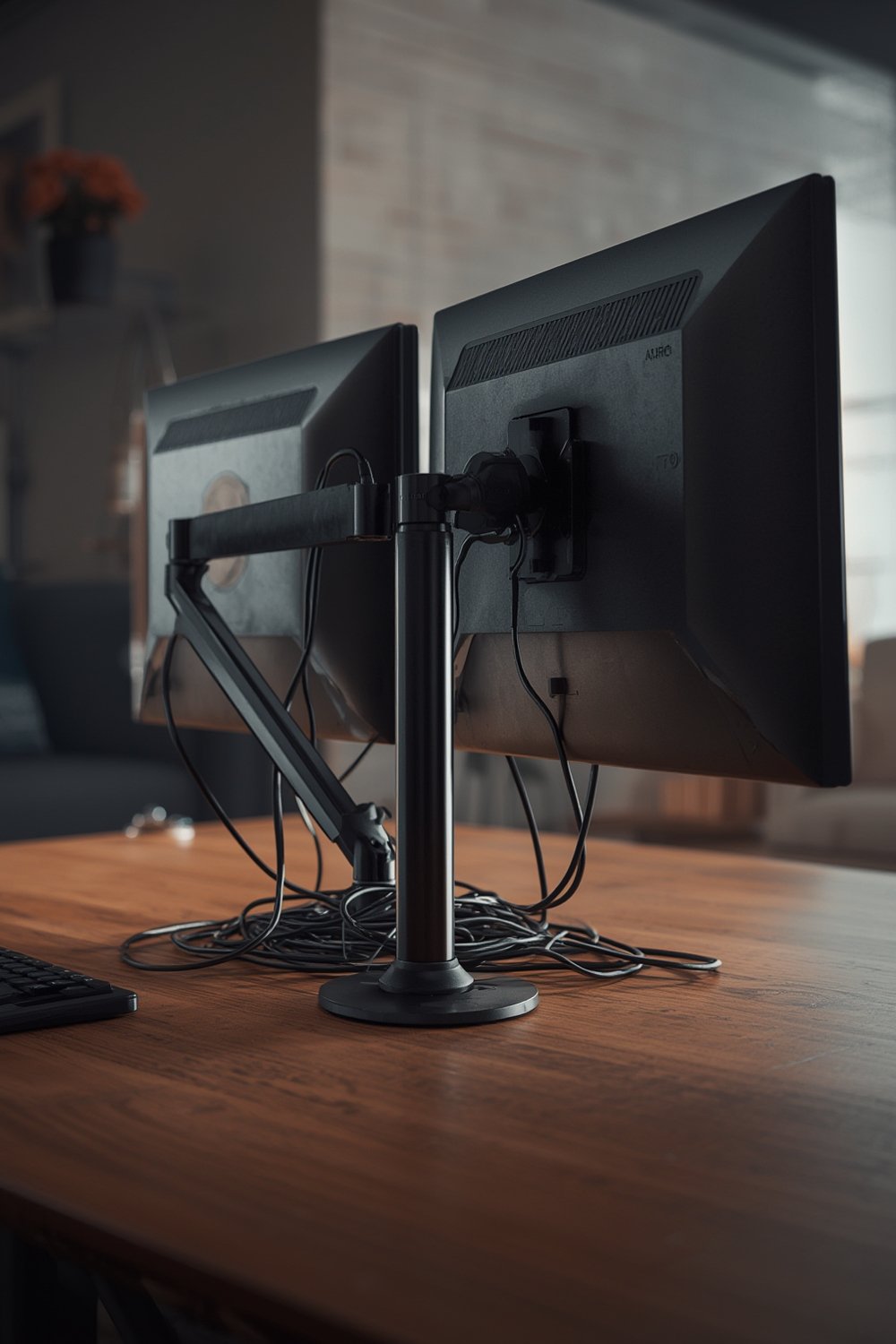
Why is it essential? Proper cable management protects cables from accidental snags, makes cleaning easier, and enables quick workspace changes. Cluttered wires not only look messy but can also interrupt monitor adjustments, restrict arm movement, and sometimes lead to damaged cables. Research confirms that cable management is a major driver behind the soaring demand for dual monitor arms—if your setup is riddled with wires, you’re missing out on the key ergonomic and aesthetic benefits.
Alongside a clean workspace, a well-managed dual arm system pairs perfectly with smart office organization products such as a desk organizer or open-shelf bookcase to keep every element of your desk under control.
Step-by-Step Guide: How to Master Dual Monitor Arm Cable Management (With Pro Tips)
Here’s how to get your dual monitor cables organized, step by step:
- Disconnect and untangle. Unplug all monitor cables. Lay them on the desk so you can see each clearly.
- Identify your monitor arm’s integrated channel system. Most dual arms (especially those with a gas spring mechanism) have removable covers, trays underneath the arms, or cable clips at pivot points. Some premium models even use magnetic covers for easy access.
- Sort and group cables. Bundle cables by monitor and type. For example, group HDMI and power together for Monitor 1, and do the same for Monitor 2. Secure each bundle gently with velcro strips.
- Feed cables through arm channels. Open the cable covers or channels, lay each cable bundle inside, and snap covers back in place. Take care at each joint or pivot—these are the areas where cables are most frequently pinched or damaged.
- Manage exit points and anchor cables under the desk. Once cables exit the last section of the arm, route them behind your desk’s back edge. Use adhesive cable clips under your desk or along the edge to keep them from hanging down loosely.
- Connect to power and peripherals. Plug each cable into the corresponding monitor and power supply. Test all screen functions to ensure nothing is under tension during movement.
- Tidy up with additional organizers. For ultra-clean results, finish with spiral cable wrap or a desk cable box to hide excess cord. Now, your dual monitor setup will remain neat and snag-free.
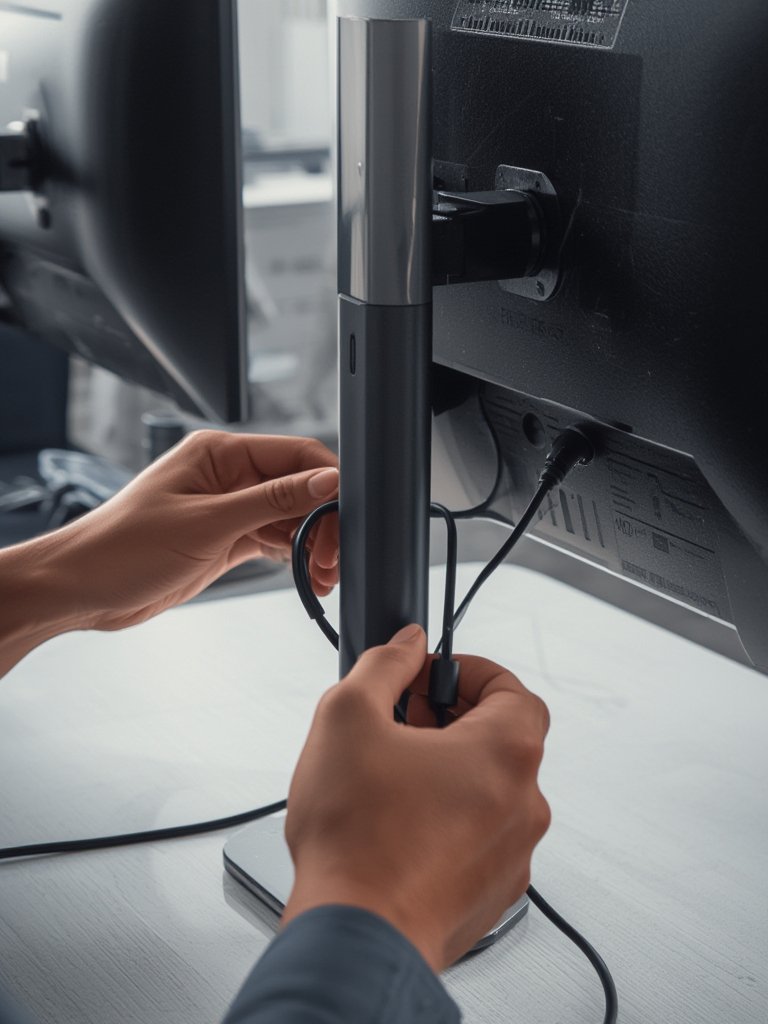
Want to create a complete ergonomic powerhouse? Combine this setup with an affordable ergonomic chair and a compact folding desk for maximum productivity in minimal space.
Don’t forget lighting—the right LED ring light can elevate video calls and content creation for your organized workstation.
Advanced Analysis & Common Pitfalls
While dual monitor arms with built-in cable routing are rapidly becoming standard (source), even the best setups can run into issues if not planned carefully. Here’s what the research—and real user reviews—suggest.
| Common Pitfall | Description | How To Avoid |
|---|---|---|
| Short Cables | Cables may stretch or unplug when moving arms, especially on gas spring models. | Buy longer cables (2m or more) and route them with enough slack for full range of motion. |
| Pinched or Damaged Wires | Cables can be crushed at arm pivots or inside tight cable channels. | Use flexible cable sleeves and avoid overstuffing cable channels. |
| Messy Exposed Cords | Cables exit arm channels and hang visibly below the desk, ruining aesthetics. | Finish with under-desk cable trays or a cable box to maintain a clean look. |
| Lack of Expandability | Adding additional accessories (like webcams, LED lights, or USB hubs) creates clutter. | Group accessory cables with monitor cables, and choose arms with extra channel capacity. |
| Poor Compatibility | Some dual arms do not support thicker cables or have tight bends incompatible with certain connectors. | Check cable channel width and arm compatibility before purchase, especially for premium cables. |
A related challenge: cable management “guides” (magnets or covers) may feel fragile or come loose over time. It’s wise to have a few spare adhesive clips and velcro ties on hand.
Integrating your cable-managed dual monitor arm with adjacent workspace pieces—such as a compact ergonomic office chair or a space-saving organizer—amplifies both comfort and efficiency.
Conclusion
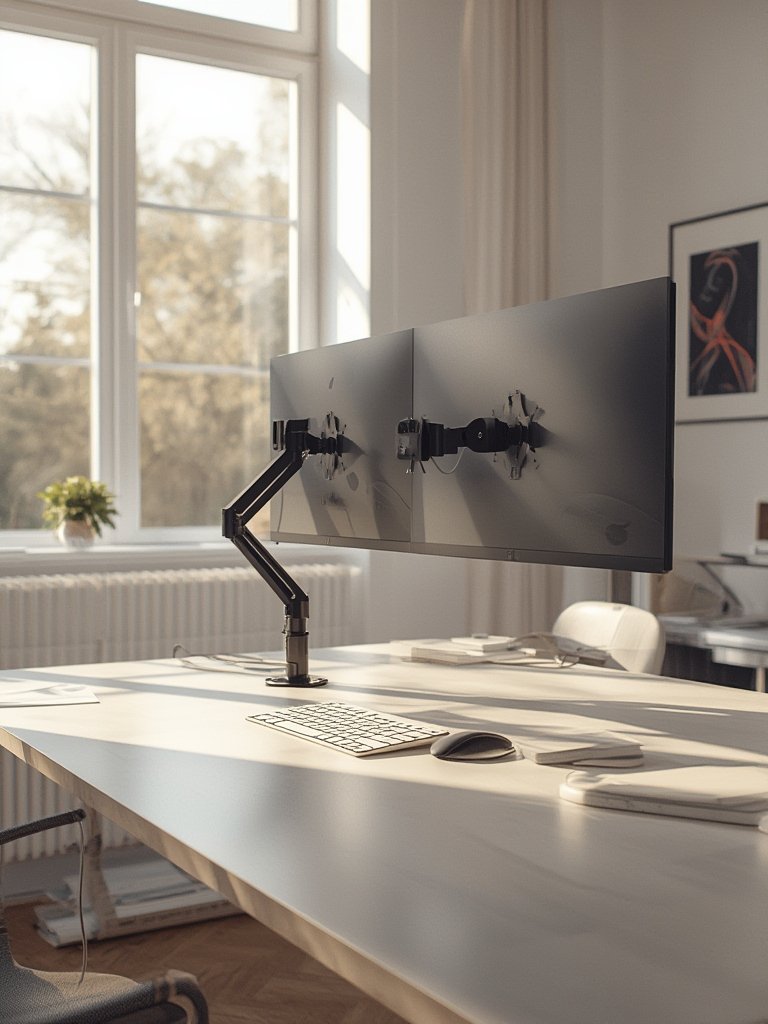
Mastering Dual Monitor Arm Cable Management transforms your desk into a clutter-free, flexible, and ultra-professional workspace. Remember—plan your layout, select the right tools, and maintain the system over time. Invest a little effort upfront for a workspace that works for you every single day.
Ready to upgrade? Take the next step: review your current setup, measure those cables, and level up your organization today.
FAQ
How do I know if my dual monitor arm supports cable management?
Check the manufacturer’s product sheet for features like integrated channels, clips, or cable covers. Most reputable brands call out magnetic or removable cable guides. If in doubt, inspect the arms for any grooves or trays underneath.
Can I use aftermarket cable organizers with my dual arm system?
Absolutely. Spiral wrap, velcro ties, and adhesive cable clips work well alongside built-in channels. Just avoid overloading cable trays to prevent pinching or bulging covers.
What cables should I group together for best results?
Bundle HDMI/DisplayPort, USB, and power cables by each monitor. Keep data and power cables separate when possible to reduce interference, especially for sensitive USB or audio signals.
How can I stop wires from showing under the desk?
Use under-desk cable trays or cable boxes to hide excess cable lengths as they exit the arm system. Adhesive clips also help keep wires tucked away and out of sight.
Is it safe to move my monitors often when using arm cable management?
Yes, as long as you leave enough slack during installation. Test all positions—if cables tug or stretch, add slack or longer cables to prevent accidental disconnection or wear.