
USB Hub Desk Mount solutions are transforming modern workspaces by offering a smarter way to charge devices, manage cables, and boost productivity—all while keeping your desk clutter-free and organized.
Key Takeaways
- Desk-mounted USB hubs streamline charging and connectivity, reducing workspace clutter.
- Recent industry growth is driven by hybrid work, home offices, and smart furniture trends.
- Choosing certified products is crucial for safety—beware of uncertified or generic solutions.
- Understanding USB Hub Desk Mounts
- Step-by-Step Guide: Installation & Optimization
- Advanced Analysis & Common Pitfalls
- Conclusion
- Frequently Asked Questions
Understanding USB Hub Desk Mounts
USB Hub Desk Mounts are dedicated charging and connectivity stations that attach securely to your desk, creating accessible ports for powering laptops, phones, tablets, or peripherals. Unlike standard USB hubs, these products clamp onto or integrate beneath the desk, ensuring your power sources stay close at hand and off the floor.
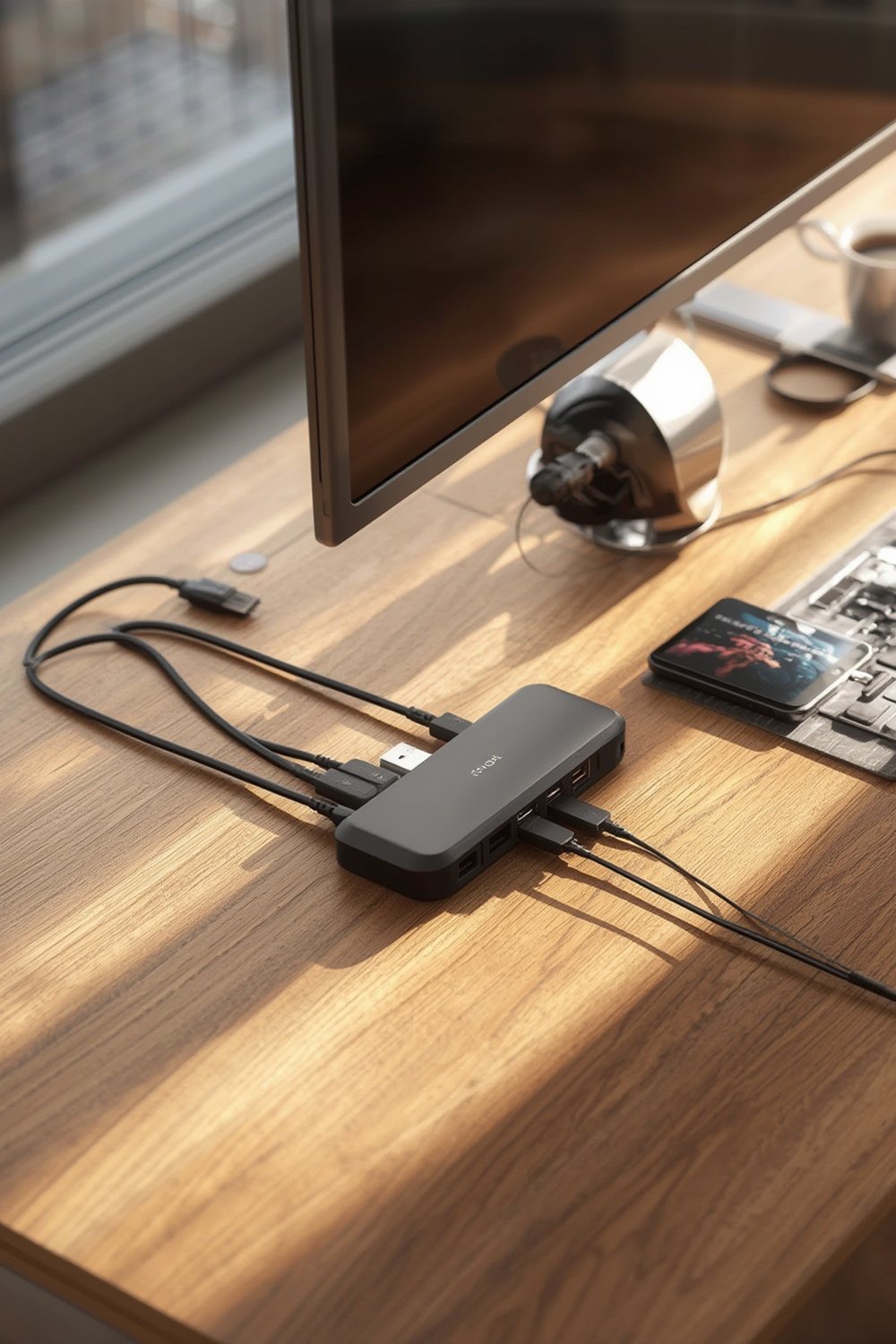
The global demand for these devices has soared in 2024, powered by the hybrid work movement, remote learning, and the rise of high-performance home offices. Commercial buyers in North America and Europe lead market adoption, but residential setups—especially gaming and creative workstations—are catching up fast (see latest stats).
A well-positioned USB Hub Desk Mount not only declutters your environment but also integrates advanced features like 100W charging, Thunderbolt 4 support, and surge protection—turning an ordinary desk into a tech-ready workspace. Pairing your hub with smart storage like the Kitsure Desk Organizer delivers even greater efficiency and organization.
Step-by-Step Guide: Installation & Optimization
To get the most out of your USB Hub Desk Mount, installation and placement matter. Here’s a practical, actionable guide you can follow without professional help:
1. Choose Your Hub Mount Type
There are three popular styles: clamp-on (attaches to the desk edge), under-desk screw mount, and grommet mount (fits into a pre-drilled hole). Clamp-on is best for rental offices or temporary setups. Under-desk is more permanent but requires drilling.
2. Plan Placement for Accessibility
Decide where you plug in the most devices (near your dominant hand, monitor stand, or keyboard tray). Ensure easy reach for commonly swapped devices like phones or USB drives. If you’re using a folding computer desk or small space, choose a compact hub and mount at the workstation’s corner.
3. Install the Mount
Clamp the mount firmly according to manufacturer specs. For maximum stability, avoid overtightening, which can damage the desk or strip mounting threads. For heavier-duty power strips with multiple outlets, consider support brackets under the desk.
4. Connect Devices and Route Cables
Plug in your power supply first, then add laptops, monitors, peripherals. Use cable management sleeves or run wires along the sides/underside of desks. Pair your hub with open shelving like the VASAGLE CUSTOS Collection bookshelf to keep chargers and gadgets neatly organized but within reach.
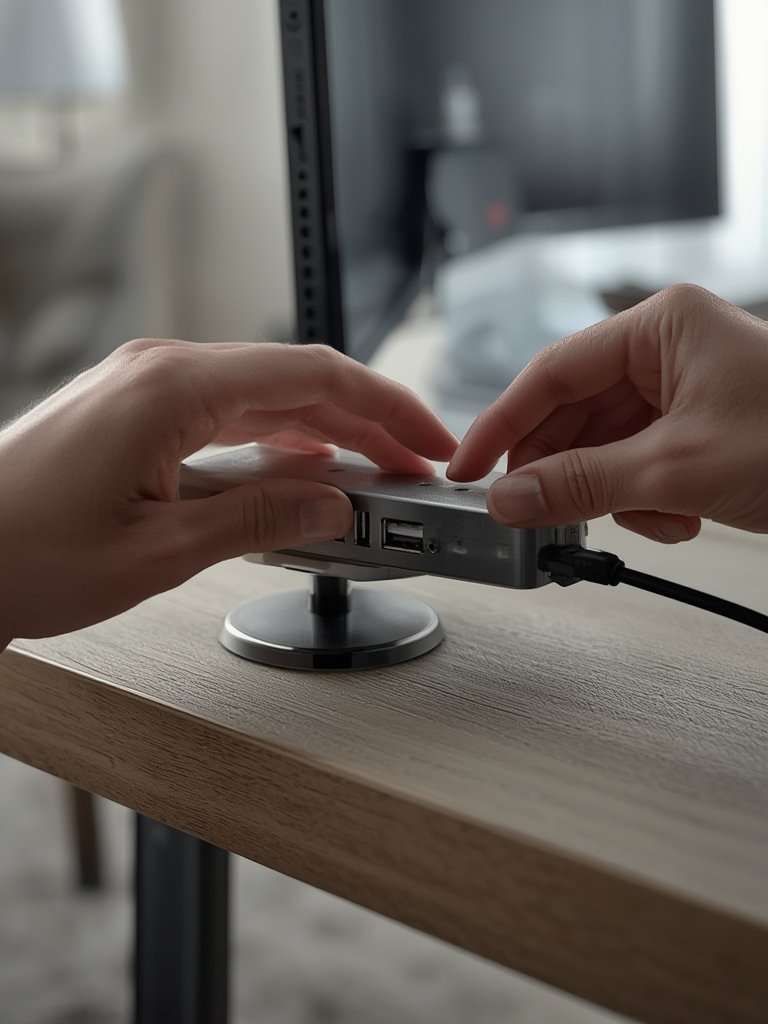
5. Power On & Test Functionality
Check all USB ports for charging and data transfer speeds. With newer premium models (Thunderbolt 4, GaN), verify compatibility with your devices—some high-wattage hubs require special cables or drivers. If you use LED lighting for video calls or content creation, pair your hub with a ring light for quick access to lighting and device power in one spot.
6. Maintain Safety
Only use USB Hub Desk Mounts with verified safety certifications—look for RoHS, flame-retardant materials, and, ideally, North American or European electrical compliance marks on devices or packaging.
For best results, integrate your ergonomic accessories and seating—such as a breathable ergonomic chair—so your entire workstation is safe, comfortable, and efficient.
Advanced Analysis & Common Pitfalls
Not every USB Hub Desk Mount delivers on promises—some setups are less compatible, or leave users with more mess than they started. Here’s what research, real-world use, and market data reveal:
Common Pitfalls
- Clutter returns fast: Cheap hubs with short cables often lead to tangled wires, which negate the declutter effect.
- Power inconsistency: Uncertified or counterfeit products can suffer from device disconnects or even damage sensitive electronics. Always prioritize certified, brand-name models—especially those carrying RoHS guarantees and flame-retardant materials.
- Desk compatibility: Thick, curved, or glass desk edges may not work with every clamp system. Always double-check compatibility guides before purchase.
- Durability issues: Lower-cost models may crack under pressure or lose clamping strength, especially with frequent changes in device layout.
- Safety risks: Uncertified hubs may lack surge protection or overcurrent protection, exposing your gear to electrical risks. Avoid “no-brand” or generic listings, even if the price is tempting.
- Hidden installation challenges: Some under-desk or grommet-style mounts require drilling or permanent changes to the desk—think twice if you rent your workspace.
Specs Comparison Table
| Feature | Premium | Mid-Range | Budget |
|---|---|---|---|
| USB Protocol | Thunderbolt 4, USB4, USB 3.2 | USB 3.0/3.1, USB-C | USB 2.0/3.0 |
| Output Wattage | Up to 100W, Power Delivery | 30–60W shared | 15–30W shared |
| Surge Protection | Advanced (multi-stage, resettable) | Standard (fuse or simple circuit) | Basic or none |
| Extra Features | 4K HDMI, Ethernet, SD slot, modular clamps | Multiple USB-A/C ports, sturdy build | Just USB-A, basic clamp |
| Certifications | RoHS, flame-retardant, eco-friendly | RoHS, basic electrical safety | May lack certifications |
| Price Range (Est.) | $80–$150+ | $35–$75 | $10–$30 |
| Suggested Use | Professional offices, gaming, creative studios | Home office, students | Secondary stations, occasional use |
Consider pairing a compact USB Hub Desk Mount with a space-saving office chair if you have limited room, or use a wide seat criss cross chair to optimize cable access below the desk.

Conclusion
A thoughtfully chosen USB Hub Desk Mount streamlines desk life—cutting clutter, simplifying power needs, and boosting flexibility for everything from business to gaming. Whether you choose a premium Thunderbolt 4 hub or a simple clamp-on charger, always check compatibility and safety. Invest once, install carefully, and enjoy a workspace that works for you. Ready to upgrade? Start by researching which USB Hub Desk Mount fits your workflow and desk style.
Have questions or insights? Share your USB desk mount experience in the comments below!
Frequently Asked Questions
Are USB Hub Desk Mounts safe for all desk types?
Most clamp-on models work for desks with standard straight or beveled edges but may not securely fit curved, glass, or exceptionally thick desktops. Always check the max and min clamp range before purchasing.
What certifications should I look for in a reliable USB hub?
Look for RoHS compliance, flame-retardant material ratings, and—if possible—nation-specific marks such as UL or FCC for North America. Certified products reduce electrical and fire risks.
Can a desk-mounted USB hub charge laptops and tablets efficiently?
Premium models with USB-C Power Delivery or Thunderbolt 4 can charge laptops (up to 100W) and tablets quickly. Basic USB-A only models usually provide slower charging, not ideal for newer devices.
What’s the difference between clamp-on, under-desk, and grommet-mounted USB hubs?
Clamp-on mounts attach tool-free to the desk edge, under-desk versions screw beneath the surface, and grommet mounts drop into a pre-cut hole. Your choice depends on desk structure and whether you can make permanent changes.
How can I keep cables tidy after mounting my USB hub?
Use adhesive cable clips, coil sleeves, or route wires through under-desk trays and shelves. Keeping the hub near your main charging area also cuts down cable length and visible mess.