Vertical Monitor Setup Portrait is quickly becoming a staple for developers and professionals who want to see more code, logs, or text without endless scrolling. If you’re considering a portrait mode monitor, here’s the hard truth—while productivity can soar, there are ergonomic traps and workflow mismatches that can slow you down if you skip the basics. This practical guide covers the benefits, common issues, and how to get a vertical monitor setup dialed in for true efficiency.
Key Takeaways
- Vertical monitor setups can display up to 50% more code—ideal for backend development and document editing.
- Ergonomics matter more than ever: Incorrect setup causes neck strain and fatigue, negating productivity gains.
- Not all workflows benefit from portrait mode—front-end and GUI-heavy tasks often demand more horizontal space.
- 1. The Core Concept of Vertical Monitor Setup Portrait
- 2. Step-by-Step Guide to Setting Up a Vertical Monitor
- 3. Advanced Analysis & Common Pitfalls
- 4. Conclusion
- 5. FAQ
The Core Concept of Vertical Monitor Setup Portrait
A vertical monitor setup in portrait mode allows you to rotate a compatible monitor 90 degrees, providing much more vertical screen real estate on your desk. For programming and working with documents, this can mean seeing up to 50% more lines of code compared to a horizontal display, which means less scrolling, better context, and faster error spotting. This boost is very real for back-end or terminal-focused developers, technical writers, and anyone managing large data logs.
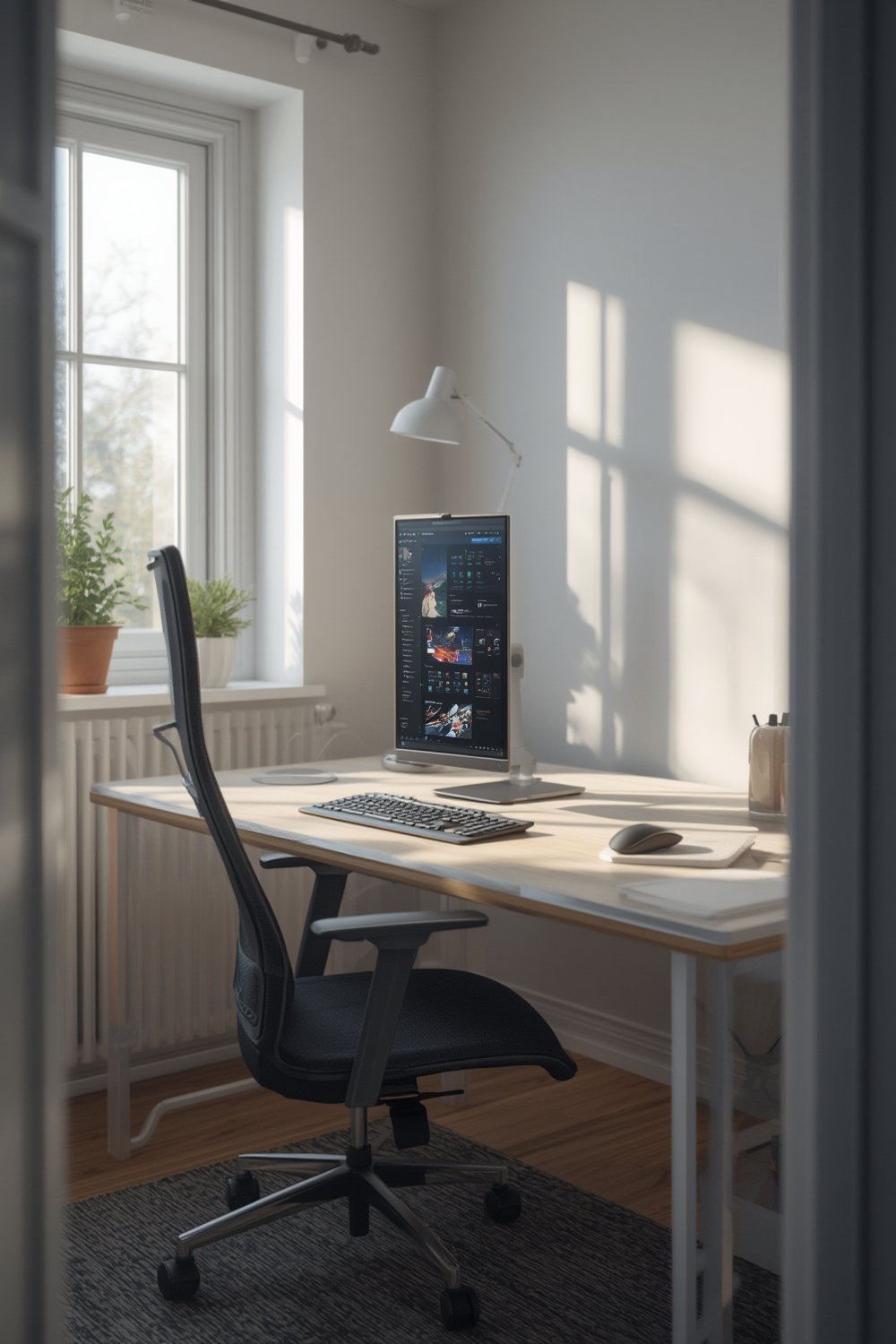
Portrait monitors show their strengths with plain-text workflows and markdown files but aren’t built for everything. Front-end designers and those using GUI tools can quickly hit the limits of narrow horizontal space. Double-stack verticals cut down desk width, yet demand careful mounting for safety and comfort. The Flash Furniture Walker folding computer desk can help make room for your ideal setup even in tight quarters. Ultimately, a vertical monitor should fit your most frequent tasks, not just look impressive.
Step-by-Step Guide to Setting Up a Vertical Monitor
Ready to try a vertical monitor setup? Follow these steps for smooth installation and better comfort:
- Check monitor compatibility. Not all monitors rotate. Look for models with adjustable stands, or use a VESA-compatible mount.
- Pick your workspace. Ensure your desk, such as the Flash Furniture Walker Desk, provides enough height and stability for vertical use.
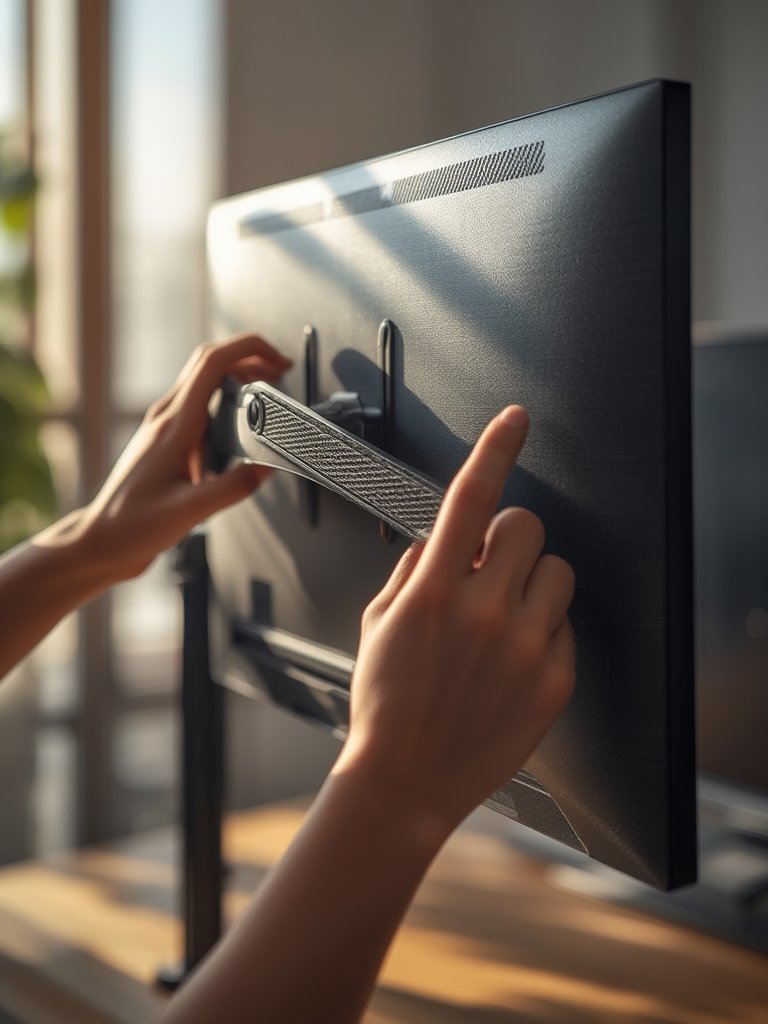
- Mount securely. High-quality monitor arms prevent wobbling, especially if stacking two verticals. Cheap stands tend to fail under rotation.
- Rotate and adjust alignment. Physically rotate your monitor and lock it in place. Tweak the height so the top third is at eye level, keeping a 20–30 inch distance from your eyes.
- Set display settings. Go to your operating system’s display preferences. Set orientation to “portrait” and make sure the resolution is at native or high (like 1440p or higher).
- Test refresh rates and scrolling. If possible, use a monitor with 120Hz+ for smoother scrolling—a must for heavy code navigation.
- Optimize cable routing. Use cable holders and desktop organizers, like the Kitsure Desk Organizer, to keep wires tidy when your screen is rotated.
- Use proper lighting. If your vertical monitor creates shadows or glare, adjust your workspace lighting. An adjustable ring light (see UBeesize 14″ Foldable Ring Light) can help reduce eye strain during long sessions.
- Select the right chair. An ergonomic mesh chair, like one of these recommended models, can minimize posture issues introduced by new monitor heights.
- Test with your daily workflow. Open code editors, browsers, and documentation side by side. Watch for awkward tool layouts or excessive scrolling, making adjustments before making this your permanent setup.
Extra tip: Pair your new vertical setup with a compact bookshelf like the VASAGLE CUSTOS Collection for quick access to print manuals or hardware references, keeping your software and hardware resources close at hand.
Advanced Analysis & Common Pitfalls
Despite the hype, a vertical monitor setup isn’t a magic bullet. Problems often arise when users focus only on perceived productivity gains and ignore ergonomic, hardware, or workflow realities. Below is a look at top pitfalls and analysis drawn from recent research and developer feedback:
| Potential Issue | Impact | Practical Workaround |
|---|---|---|
| Ergonomic misalignment | Neck and shoulder strain if monitor is too high/low or too far away | Keep top-third at eye level; 20-30 inches away; use an ergonomic chair |
| Monitor instability (especially dual-stacked verticals) | Wobble disrupts focus and risks screen damage | Invest in heavy-duty VESA mounts and wide, stable desks |
| Insufficient refresh rate | Text blurring during fast vertical scrolling | Choose monitors with 120Hz+ support and quality cables |
| Lack of horizontal space | Poor usability for multi-pane GUIs, browser tools, or side-by-side app layouts | Reserve portrait mode for code/logs; keep at least one landscape monitor for design/GUI/testing |
| Poor cable management | Dangling cables create clutter and increase risk of disconnects when rotating | Reroute cables with clips and use tiered desk organizers like the Kitsure Desk Organizer |
| Suboptimal lighting | Portrait screens may create more glare or shadow | Use adjustable ring lights (like UBeesize 14″ Foldable Ring Light) and experiment with angles |
| Workflow mismatch | Backend and documentation excel; front-end, DAW, or spreadsheet work suffer | Tailor orientation to role; switch as needed |
Missed by competitors: Many guides forget to emphasize that vertical orientation is not a universal fix. It doesn’t replace good ergonomic habits or suit all types of programming. Collaboration or group code review? Landscape or ultrawide often works better. Period.
Conclusion
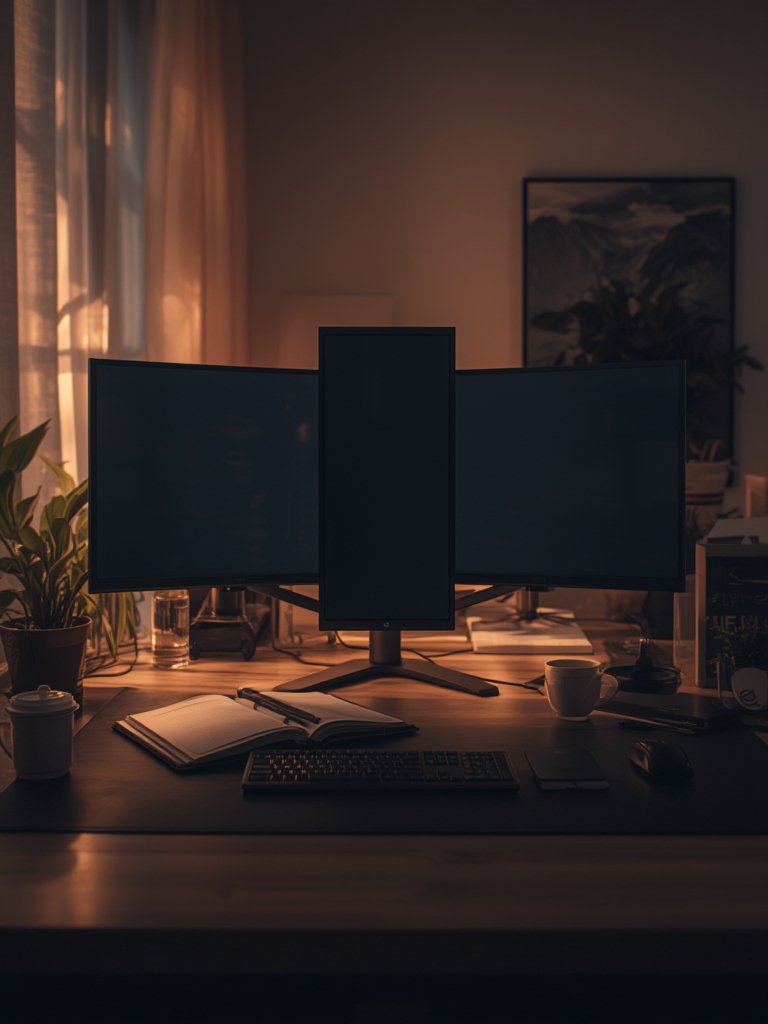
A Vertical Monitor Setup Portrait gives most developers huge advantages in code navigation and document review—if you set it up with care. Monitor stability, ergonomic alignment, refresh rate, and workflow fit matter just as much as raw screen space. Start small by adding a single vertical monitor as a reference screen or for backend work, then expand if your needs grow. For more tips on optimizing your workspace, explore our guides on ergonomic office chairs and low-back ergonomic chairs. Ready to level up your desk? Take action, test what works, and refine until every pixel pulls its weight.
FAQ
Is portrait mode better for coding or writing long documents?
For most back-end coding and working with long-form documents, portrait mode is a clear winner. It increases visible lines, cuts down on scrolling, and helps you keep context. However, it’s not ideal for front-end design or spreadsheet work, which need more horizontal space.
How do I avoid neck pain with a vertical monitor?
Set your monitor with the top-third at eye level and maintain 20–30 inches between your eyes and the screen. Use an ergonomic chair and adjust both desk and monitor heights until you find a comfy, neutral posture.
Can any monitor be used in portrait mode?
Not all monitors are designed for safe rotation. Check for VESA-mount compatibility or choose models with stand-supported rotation. The BenQ RD series is a popular choice for reliable easy pivot and ergonomic adjustment.
What is the best aspect ratio for a vertical monitor setup?
Monitors with 16:10 or 3:2 aspect ratios (like the BenQ RD280UA) give exceptional vertical workspace even without physically rotating the display. These are ideal for developers who want tall screens without desk rearrangement.
Do I need a special desk for dual vertical monitors?
It’s recommended. Dual verticals are taller and can wobble on light desks. Consider a wide, stable model like the Flash Furniture Walker Desk for maximum stability.